The Potential of Microsoft Power Apps Plan Designer (preview)

Updated: Mar 11
Starting the process of designing and building a business application can often be overwhelming. Microsoft’s Power Apps Plan Designer, a Copilot-first tool, seeks to simplify this process, enabling rapid solution development using natural language and visual inputs.
In this blog, we’ll explore what Plan Designer (preview) can do, its current limitations, and practical tips for using it effectively. Whether you’re a seasoned Power Platform professional or just starting, this review will help you understand how Plan Designer fits into the Power Platform toolkit.
Exploring Microsoft Power Apps Plan Designer
Plan Designer is a preview feature within Power Apps designed to accelerate the creation of Power Platform solutions. By using natural language inputs and relevant visuals like screenshots or process diagrams, it generates user stories and then a starter solution comprising:
Dataverse tables
Canvas apps
Model-driven apps
Suggested Power Automate flows
While it offers huge potential, the tool is still in preview and has several limitations.

My Scenario for Testing Plan Designer
To illustrate the findings discussed in this blog post, below is one of the prompts I used to test Plan Designer.
A forest management company wants to digitise their process for issuing permits for the public to access their forests for different activities.
Objectives of the Solution
The objectives of the solution are to:
Increase the efficiency of managing permit applications
Ensure that permit data is accurate and secure
Improve the permit experience for staff and the public
Current Process
The current process is as follows:
A permit officer collects information about the person applying for a permit. Details about the information are in the attached Forest permit document. These need to be captured by the solution.
The permit officer writes the information on a paper permit document (see Forest permit document attached).
The applicant signs the permit. A copy is retained by the company and another given to the applicant.
Additional notes:
Sometimes a payment is required, which needs to be recorded and tracked.
Sometimes keys to the forest are provided to the permit holder, which need to be recorded and tracked to ensure that they have been returned.
Each week, the permit officer emails a report to other staff in the organisation to inform them about who will be entering forests that week (see attached Forest permit report).
The forest management company is on a small budget and can only afford Power Apps per User licenses. This needs to be kept in mind when designing the solution.
I also uploaded a screenshot of the permit form that is to be digitised by the solution.

Strengths of Plan Designer
1. Rapid Data Model Build
Plan Designer is great at creating initial data models quickly. For instance, generating a preliminary data model for the Forest Permit scenario took minutes, rather than hours if it were built manually. However, there are current data modelling limitations, which I assume will be fixed before Plan Designer exits its preview release state.
2. Comprehensive User Story Suggestions
I was impressed with the Copilot-driven user story generation. It came up with user stories that I hadn’t thought of, focusing on a complete end-user experience.
3. Data Recognition from Visuals
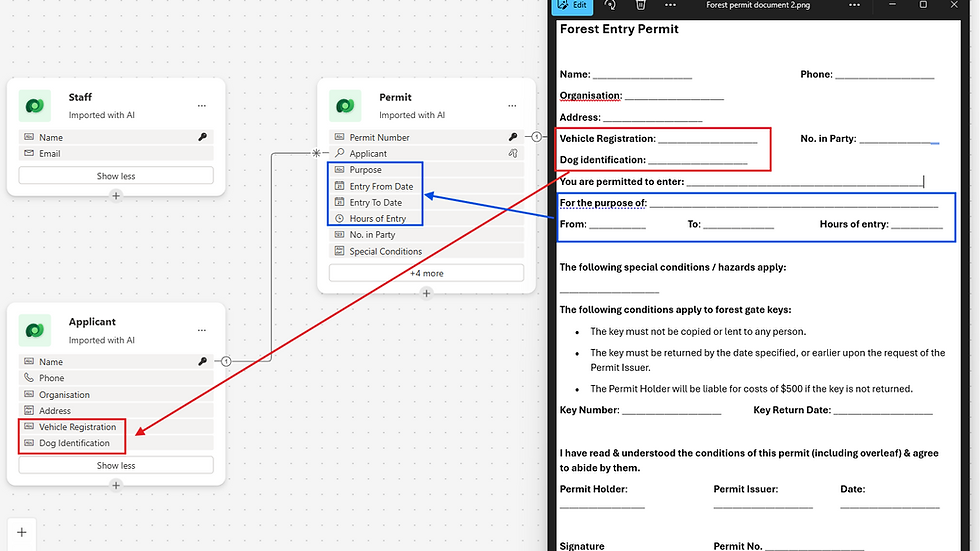
It performs well at analysing images. Using the scanned permit form that I uploaded, it was able to extract the fields and incorporate them into the data model.
4. Data Modelling
It determined that the fields extracted from the permit form should be split across two tables: the Applicant and Permit tables. For example, it recognised that the Vehicle Registration belonged to the Applicant table and not in the Permit table.

5. App Creation
It efficiently builds a basic version of canvas and model-driven apps from the generated data model. This provides a functioning app within minutes and serves as a solid foundation for further development and refinement of the user experience. The canvas apps also feature an appealing and professional user interface, which has historically been a weakness. They use modern controls and leverage Microsoft's Fluent UI framework. This should lead to more consistent canvas app user experiences.

Limitations of Plan Designer
Despite its strengths, there are a few limitations in the preview of Plan Designer that need to be addressed before it is released to general availability. Otherwise, certain limitations, like data modelling, may require more rework than the time saved initially.
1. Data Modelling Limitations
There is no ability to edit the data model during the design process. This means that you cannot change the data type of a column if Plan Designer gets it wrong, which it often does. Instead, you must delete the column and add it back after Plan Designer creates the data model in Dataverse.
Existing Dataverse tables cannot be leveraged. This can result in unnecessary duplicates. For example, in the forest permit scenario, it created a new "Applicant" table instead of using the existing "Contact" table. This means that only new, stand-alone solutions can be created through Plan Designer. There is no ability to add an app or feature to an existing solution.
2. Adherence to Power Platform Best Practices
It fails to implement and/or offer guidance on Power Platform best practices around data modelling in Dataverse, licensing, security and data privacy, app choice (model-driven vs. canvas app), and solution management.
For example, it avoids out-of-the-box (OOTB) fields like "Status" and creates additional columns to hold status values.
Users of Plan Designer still need to understand Power Platform well enough to review and check the validity of what the Plan Designer has created. Currently, I see Plan Designer as a tool for experienced Power Platform makers to accelerate data model and app development rather than a tool for beginners.
3. Potential for Restricting Creativity
Plan Designer’s focus on predefined apps and Power Automate flows can limit exploration of innovative solutions. These include using Power BI for reporting, Copilot for more interactive user experiences, and other components of the Microsoft ecosystem that integrate seamlessly with the Power Platform.
Best Practices for Using Plan Designer
Based on my experience with the Plan Designer preview, here are some tips for effectively approaching Plan Designer as a tool.
1. Treat It as a Teammate, Not a Decision-Maker
Think of Plan Designer as a collaborative tool that offers a starting point, not the final answer. Be prepared to question its recommendations to ensure they meet your users’ needs.
2. Pair with Expert Knowledge
This tool assumes a baseline understanding of Power Platform essentials, such as data modeling, licensing, solution management, and app selection (e.g., model-driven vs. canvas apps).
3. Use for Prototyping Simple App-First Scenarios
It is ideal for rapidly creating prototypes or simple, app-focused solutions where Dataverse functions as the database.
4. Combine with Other Tools
For brainstorming alternative user experiences and solutions beyond just apps, tools like ChatGPT or Copilot can complement Plan Designer.
How Does Plan Designer Work?
If you perform a quick search on YouTube, there are numerous videos demonstrating how Plan Designer presently works. Here are my favorites:
For Microsoft documentation on how to use Plan Designer, see:
How to Get Started
Plan Designer preview is currently rolling out and may not be available in some regions at the time of writing. Nevertheless, it is accessible in early-release environments in the US region.
Create an early release environment in the US region.
Navigate to Power Apps Preview.
Enable the "Try the new Power Apps experience" option.

Conclusion
The Microsoft Power Apps Plan Designer shows huge potential for faster business solution development in the Power Platform. While it provides powerful tools for prototyping and initial data modeling, it requires expert oversight and a comprehensive understanding of best practices.
For now, use it as an accelerator, not a one-stop solution.
Share Your Experience
What has been your experience with Plan Designer? Let us know in the comments.
Comments